Blog
Blog
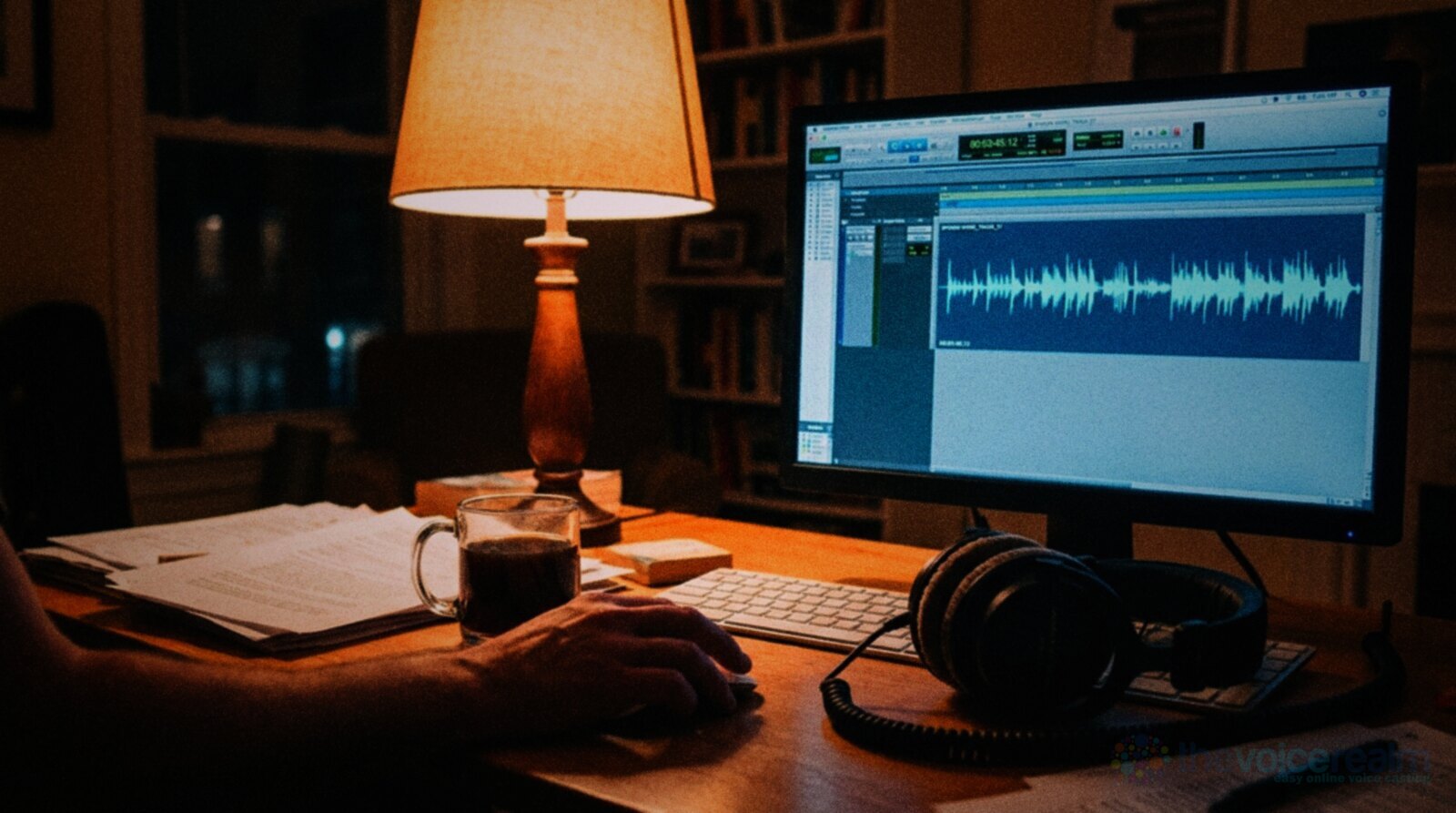
Every new voice actor hits the same question within a week of buying a microphone: what do I actually record into? Search for an answer and you’ll find music producers arguing about beat making, mixing consoles and plugin bundles, none of which a voice actor needs.
This guide is for voice actors setting up a first home studio, and for anyone who’s outgrown the free editor they started with. It explains what voice work really asks of recording software, walks through the free and paid choices with their prices as of October 2026, and finishes with a plain recommendation for each kind of voice actor. The short answer, before we start: the software matters far less than the room and the person in it, and the best choice is usually the one you’ll learn properly.
What voice work asks of recording software
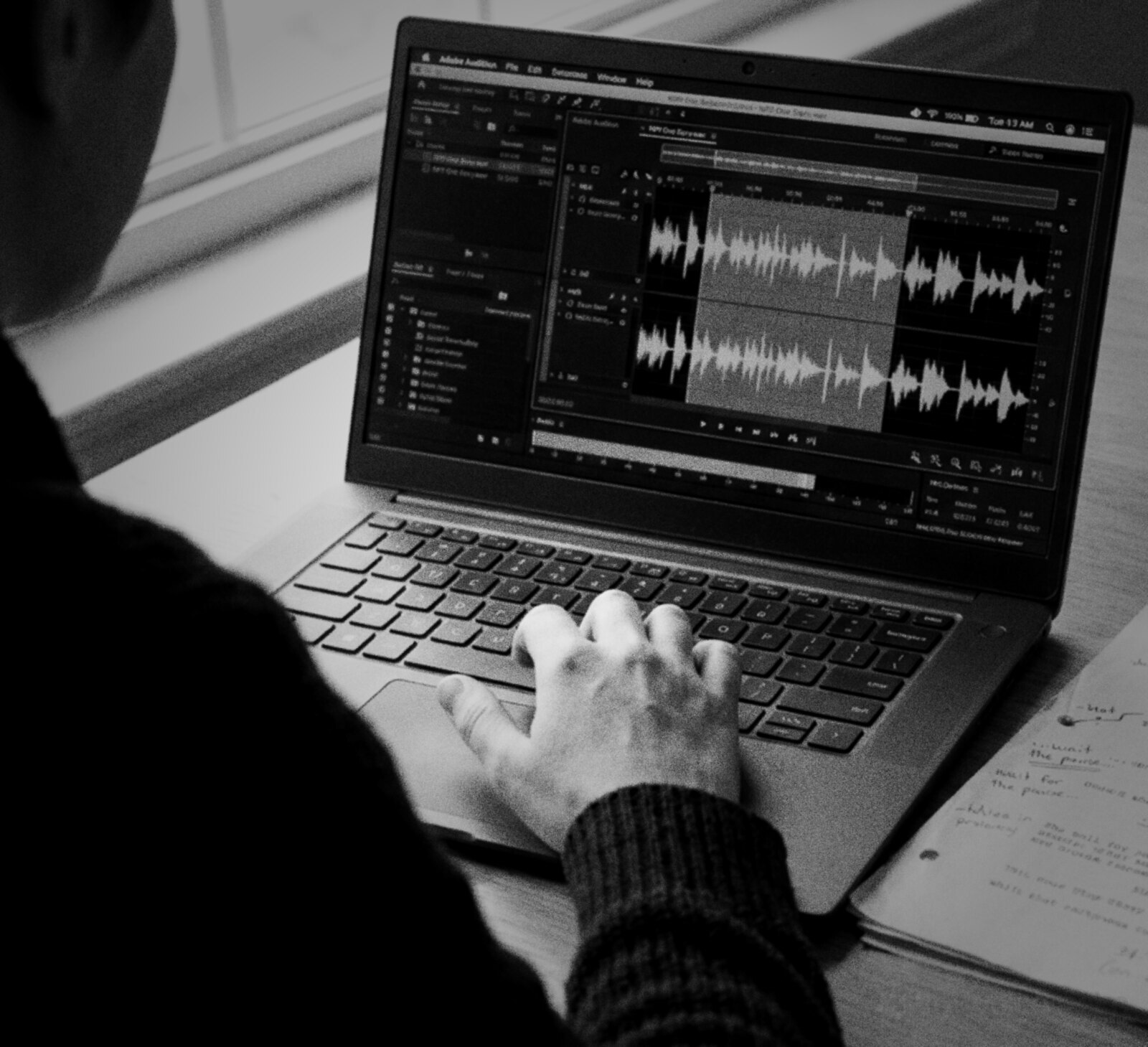
Recording software is usually called a DAW, short for digital audio workstation. Music producers need dozens of tracks, virtual instruments and complex mixing. A voice actor mostly needs one mono track and a fast way to record, fix and deliver clean files. That narrows the field a lot.
Here’s what earns its place in a voice actor’s software. It should record a single mono track at 48 kHz and 24 bit, the format most clients ask for. It should let you punch in over a mistake without stopping, which saves hours on long scripts. It should keep your original recording safe while you edit, so a bad cut can be undone next week, not just in the next five minutes. And it should export several files at once with the names and formats a client wants.
Nice to have, rather than essential: a loudness meter that reads in LUFS, gentle noise reduction for the odd hum, and the ability to save a template so every session starts with the same settings. Things you don’t need: virtual instruments, MIDI, beat grids and fifty tracks.
© The Voice Realm
Destructive or non-destructive, and why it matters
This is the one technical idea worth getting your head round before you choose. Sam Inglis explained it well in Sound On Sound, starting with tape: “Because tape is a physical medium, editing tape is a ‘destructive’ process. Once you’ve cut a piece of tape, it stays cut.”
Most modern software works differently. In the same article Inglis says digital editing means “false moves can be undone, and even if you screw something up beyond all recognition, the system should retain a copy of the original recording that you can revert to.”
Some voice editors still work destructively on purpose, writing every change straight into the file. That can be quick and simple for short jobs, and some experienced narrators love it. The risk is that a noise reduction pass you regret tomorrow can’t be pulled back out. If you’re new, start with software that keeps your original audio intact, and learn to save a copy of the raw take before you process anything.
Audacity, the free editor most people start with, changed a lot here this autumn. Its version 4 release notes say it was “Released 3 Sept 2026” with “a new clip editing model and a more flexible recording flow.” Its own help pages now say “Trimming is a non-destructive operation,” and its guide to version 4 says that with the new realtime effects, “Nothing is written into your audio until export.” If you learned Audacity years ago, it’s worth a fresh look.
© The Voice Realm
The free options
You can do paid, professional voice work on free software. Plenty of people do. The free choices are better than they’ve ever been, and each suits a different kind of person.
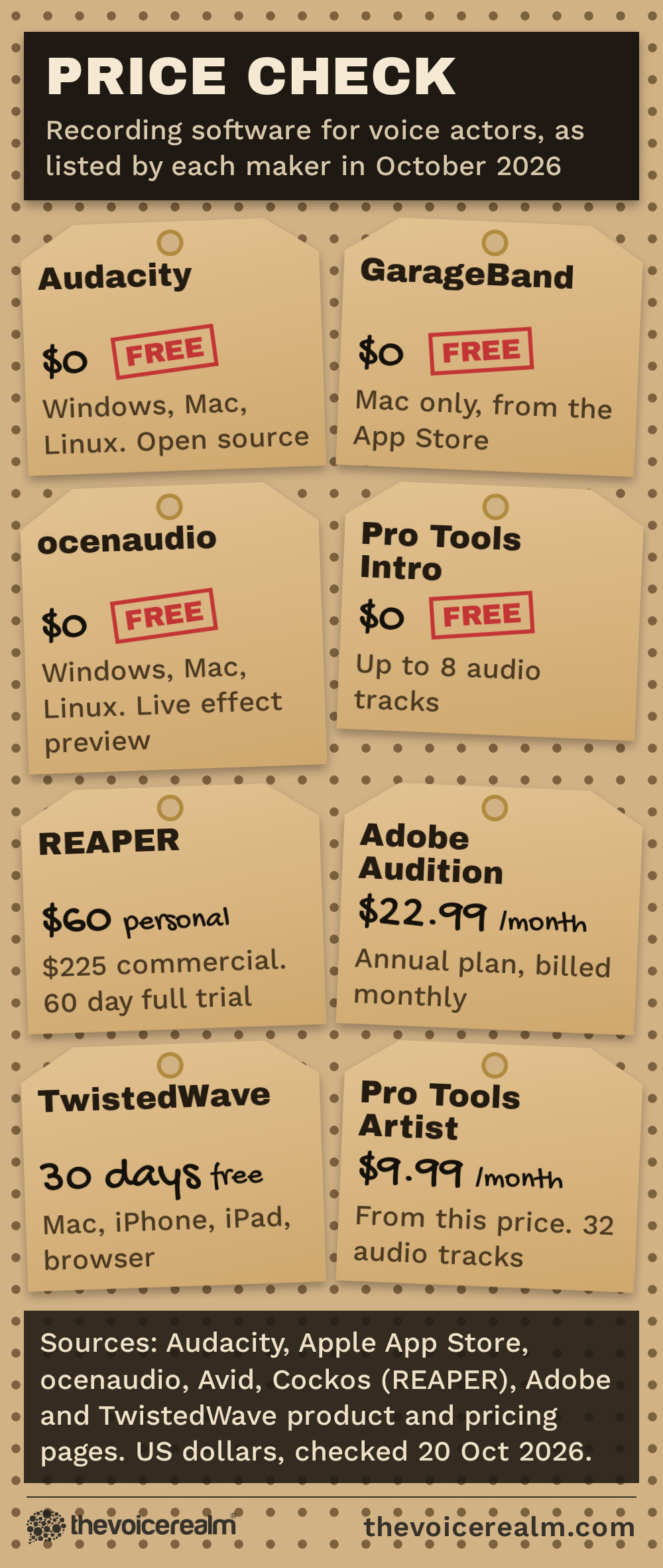
Audacity calls itself a “Free, Open Source Audio Editor and Recorder” and runs on Windows, macOS and Linux. It has the tools a voice actor needs, including punch and roll recording, loudness normalisation and noise reduction, which its manual says “can reduce constant background sounds such as hum, whistle, whine, buzz, and “hiss”, such as tape hiss, fan noise or FM/webcast carrier noise.” Its huge user base means almost every problem you’ll hit has a tutorial already.
GarageBand comes free with a Mac and is listed as free on the App Store. It’s designed around music, so voice actors find it a little fiddly for long scripts, but it records clean audio and it’s already installed. A fine way to start on a Mac while you decide what you like.
ocenaudio is a lightweight free editor for Windows, macOS and Linux. Its best feature for beginners is the effects preview, where, in its own words, “you hear the processed signal while adjusting the controls.” That’s a good way to learn what noise reduction and equalisation actually do to a voice before you commit.
Pro Tools Intro is the free version of the software you’ll find in many big studios, and Avid says it “is free forever.” The limit is size. Its FAQ says you “can work with up to eight audio tracks, eight instrument tracks, and eight MIDI tracks in Pro Tools Intro”, which is plenty for voice work. It’s worth considering if you hope to work in commercial studios, since learning the industry standard early does no harm.
The paid options, and what you get for the money
Paying for software doesn’t make you sound better. What it buys is speed: faster editing, better batch tools, and fewer clicks between the booth and the delivered file. For a working voice actor, saved time adds up quickly.
REAPER turns up in a lot of home studios, partly because it’s so affordable. Its maker says “you get 60 days of evaluation free, with full functionality, and no strings attached.” After that, a discounted licence is $60 for individuals using it personally, or for businesses whose yearly gross revenue doesn’t exceed $20,000. The commercial licence is $225. It runs on Windows, macOS and Linux and is a small, fast download. The catch is that it does almost everything, which makes it intimidating at first. Set it up once for voice work, save a template, and it becomes very quick.
“The best recording software is the one you know well enough to stop thinking about.”
The Voice RealmPost this quote
Adobe Audition is a subscription, listed at US$22.99 a month on an annual plan billed monthly. Adobe describes it as offering “Multitrack, waveform, and spectral display”, and the spectral view is the reason many editors love it: you can see a mouth click or a chair creak as a shape and paint it out. If you already pay for Adobe’s apps for video work, it may already be included in your plan.
 VoiceEditSuiteAuto Clean Up now learns how you breathe.A 30-second setup teaches it your breath, and you can teach it any breath it misses.See how it worksLearns from numbers, never your audio. Never used to train AI.
TwistedWave is a fast, simple editor for Mac, iPhone and iPad, and it also runs online in a browser, “with nothing to download or install.” It’s built for speed, and its batch engine can “process thousands of files at once,” a real help when a client wants hundreds of short prompts trimmed and named. There’s a fully functional 30 day trial.
Pro Tools Artist is the paid step up from Pro Tools Intro, with more tracks and plugins. Most voice actors won’t need it unless they’re mixing music or working on post production.

© The Voice Realm
Punch and roll: the feature that saves the most time
If you only learn one feature properly, make it this. Punch and roll recording means that when you flub a line, you stop, the software plays back the last few seconds so you can hear your pace and tone, and then it starts recording again from the point of the mistake. You never edit out the fluff later, because it’s already gone.
Audacity’s manual says the feature “enables you to to correct errors easily during the course of a recording session” (the double “to” is theirs). It’s under the Transport menu, the shortcut is Shift and D, and the manual notes the lead in before you start talking again is five seconds by default. The paid tools have their own versions of the same idea, so whichever you pick, look up how it punches in before your first long job.
We’ve written a full walk through of the punch and roll method and how to keep your flow, which is worth reading before your first long narration job.
© The Voice Realm
Set it up once, then stop thinking about it
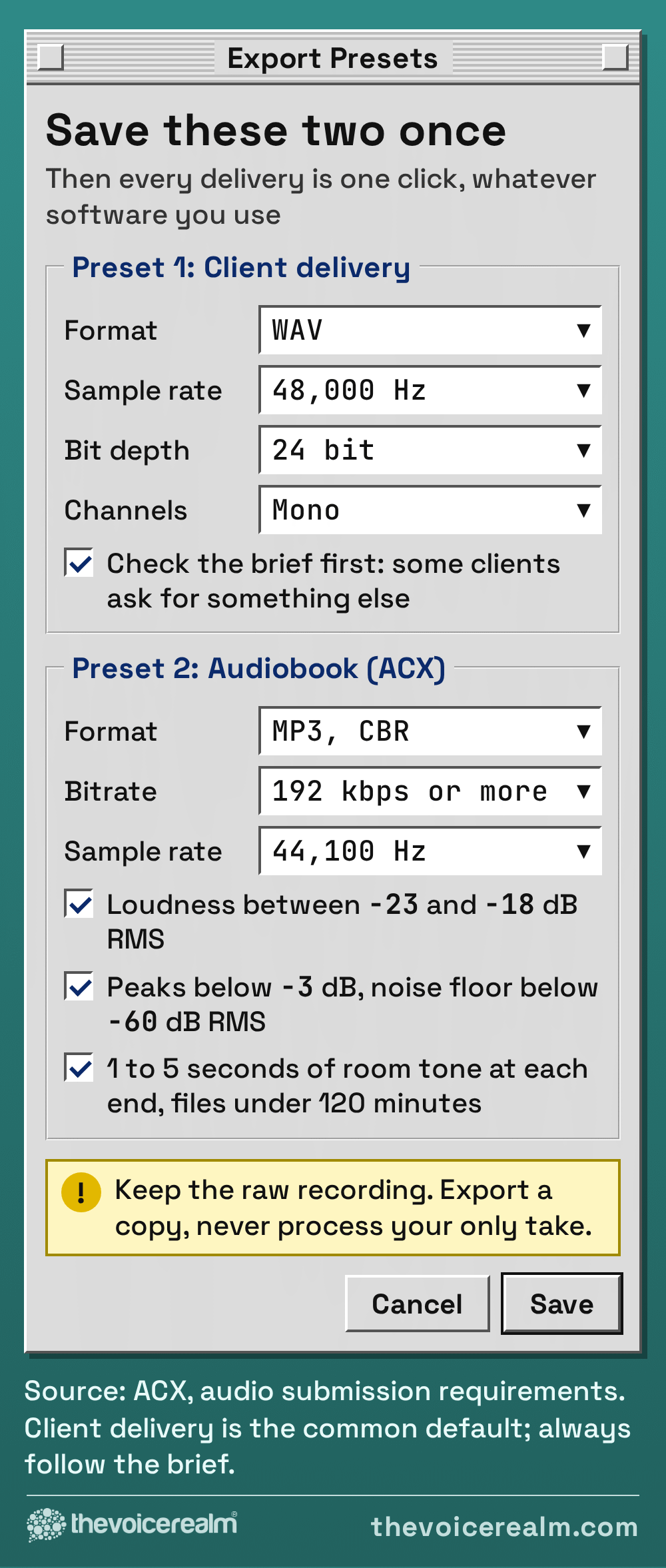
Whatever you choose, spend one evening setting it up properly and save the result as a template. Set the project to the sample rate and bit depth your clients ask for. Create one mono track for your microphone. Name it. Set your input level and check your meters. Save the export settings for the formats you deliver most often, so you’re never hunting through menus with a client waiting.
The technical bar is set by the client, not the software. Most commercial work arrives as a WAV file, and audiobook platforms publish exact numbers for loudness, peaks and noise. Our guide to the audio specs behind every voice over file has the details, and every tool in this article can hit them.
Then learn a handful of keyboard shortcuts for the things you do a hundred times a day: start and stop recording, punch in, split, delete, zoom. That’s the real difference between an hour of editing and twenty minutes.
© The Voice Realm
Which one should you choose?
If you’re just starting and money is tight, use Audacity on Windows or Linux, or GarageBand on a Mac, and put the money you saved into treating your room. If you’d like structured help with the basics alongside the gear, Voice Master Academy is a good place to learn the craft side as you go.
If you’re getting regular work and want to edit faster, try REAPER for its full 60 day evaluation. If it clicks for you, the personal licence costs less than a decent pair of headphones.
If you clean up a lot of mouth noise or edit other people’s audio, or you already pay for Adobe’s apps, Audition’s spectral view is worth the subscription. If you’re on a Mac and want speed above all, try TwistedWave. If you want to work in commercial studios, learn Pro Tools Intro now.
And if none of them feels right after a month, switch. Your recordings are just audio files. Nothing locks you in.
The room matters more than the software
No recording software can remove a room echo convincingly, and heavy noise reduction makes a voice sound watery and processed. Clients hear that straight away. Before you spend anything on software, measure the room you’re recording in. Voice Edit Suite’s free Home Studio Analysis tells you how much echo and background noise your recordings carry. Measure, treat, then measure again.
If the numbers say the room is the problem, our guide to treating a room for voice over starts with the cheapest fixes first. Get the room right and any of the tools above will give you clean, professional files.
Sources: Sam Inglis, Sound On Sound, “Audio Editing In DAWs”; Audacity, “Audacity 4.0.0 changelog”, “Audacity 3 to 4 transition guide”, “Editing”, “Punch and Roll Record” and “Noise Reduction”; Apple, “GarageBand on the App Store”; ocenaudio, “Features”; Avid, “Pro Tools” and “Pro Tools Intro FAQ”; Cockos, “Purchase REAPER”; Adobe, “Adobe Audition”; TwistedWave, “TwistedWave” and “TwistedWave for Mac”; ACX, “What are the ACX audio submission requirements?”.
Ready to get booked?
See the jobs open right nowAbout Sarah Robbins
Sarah Robbins writes for The Voice Realm about finding voice over work, home studios, casting and the business side of voice acting.